

FSL In simple terms is a tool that helps companies manage their field work better — things like scheduling technicians, assigning jobs and tracking repairs or maintenance. It keeps customer service teams, dispatchers and field technicians connected in real time so everything runs smoothly.
The result? Faster service, smarter scheduling and happier customers.
✅ Old name: Field Service Lightning (FSL)
✅ New name: Salesforce Field Service
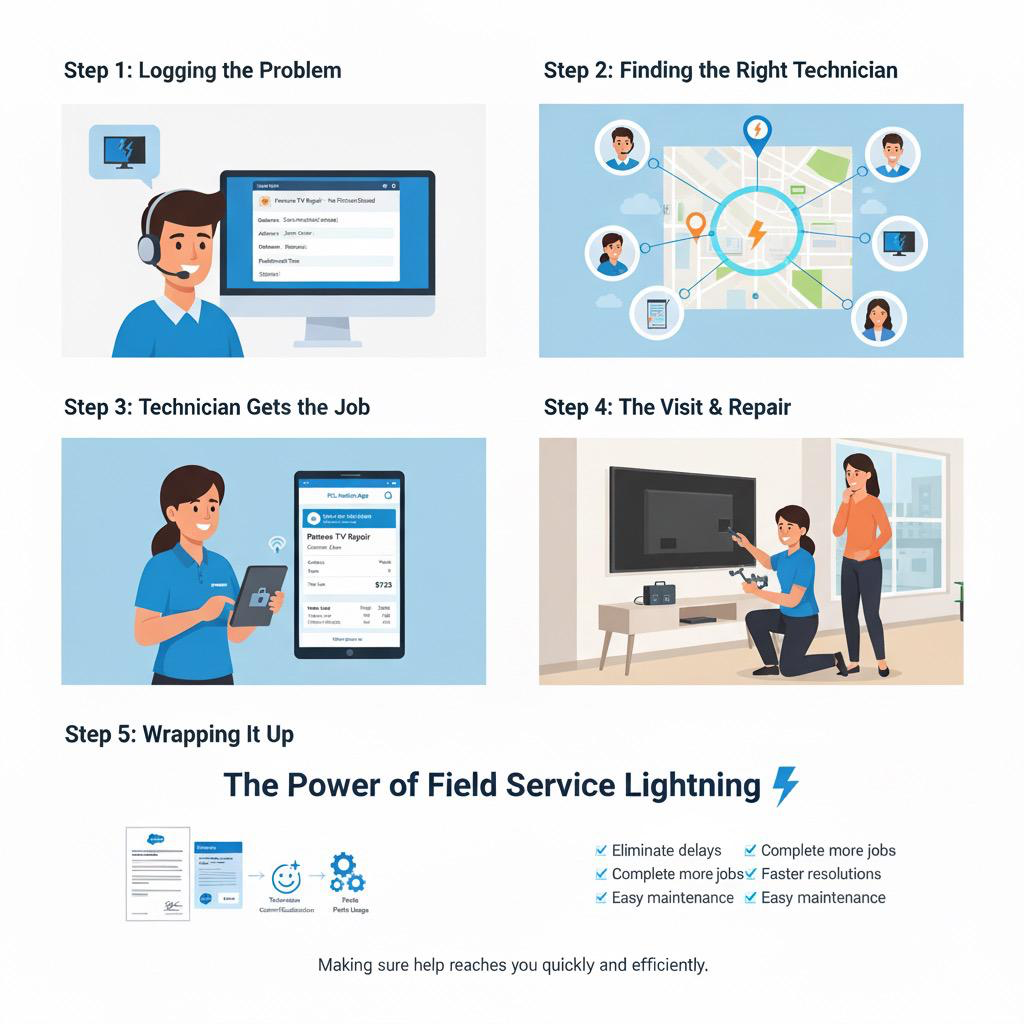
Let’s take a simple story to understand how Salesforce Field Service Lightning (FSL) works in real life.
Meet Panovo, a company that sells home appliances — TVs, refrigerators, washing machines and microwaves.
You recently bought a brand-new TV from them and everything was great… until one day, the screen suddenly went blank. No picture, no sound — just silence.
Frustrated but hopeful, you call Panovo’s customer support to report the issue.
- Step 1: Logging the Problem :
The customer service representative listens carefully and records the details — what’s wrong with the TV, your contact info, and the best time for a technician to visit.
All this information is saved as a Work Order in Salesforce Field Service Lightning. - Step 2: Finding the Right Technician :
Now that the issue is logged, the system automatically looks for the best technician to fix your TV.
Using data like skills, location, and availability, FSL finds the most suitable person for the job — someone close by who’s great at repairing TVs like yours. - Step 3: Technician Gets the Job :
The selected technician instantly gets a notification on the FSL Mobile App, showing all the details — your name, address, issue, and preferred time.
No phone calls, no confusion — everything the technician needs is right there on the app. - Step 4: The Visit & Repair :
At your scheduled time, the technician arrives at your home, checks the TV, and fixes the issue.
Once done, they update the repair details on the app — including the parts used — and capture your digital signature to confirm the job is complete. - Step 5: Wrapping It Up :
When the technician marks the work as complete, FSL automatically generates a service report and even creates an invoice.
Behind the scenes, Panovo can now track technician performance, customer satisfaction, and parts usage — all from one system.
The Magic Behind FSL
Because of Salesforce Field Service Lightning, companies like Panovo can:
✅ Eliminate scheduling delays and reduce dispatcher workload
✅ Complete more jobs each day with optimized routing
✅ Offer accurate appointment times and faster resolutions
✅ Easy maintenance designed to help technicians finish tasks more efficiently.
So next time your TV or appliance acts up, just remember — there’s an entire system working quietly in the background to make sure help reaches you quickly and efficiently. That’s the power of Field Service Lightning ⚡
Other Common Use Cases of Field Service Lightning
Beyond the TV repair example, Salesforce Field Service Lightning supports a wide range of real-world scenarios across different industries. Here are a few examples:
- Repairs: Field technicians visit customer locations to perform repairs — sometimes in a single visit, sometimes across multiple appointments. Each job may require specific skills or specialized equipment.
- Maintenance: Regular, scheduled visits that follow a recurring pattern — such as servicing machines, inspecting equipment, or performing safety checks.
- Sales: Sales representatives who frequently visit prospects or customers can use Field Service to coordinate visits. Integrating it with Salesforce Maps further enhances route planning and visit management.
So now you know the story, let’s dive deep to understa more on how it works inside salesfroce.
First lets understand the Roles in Salesforce Field Service :
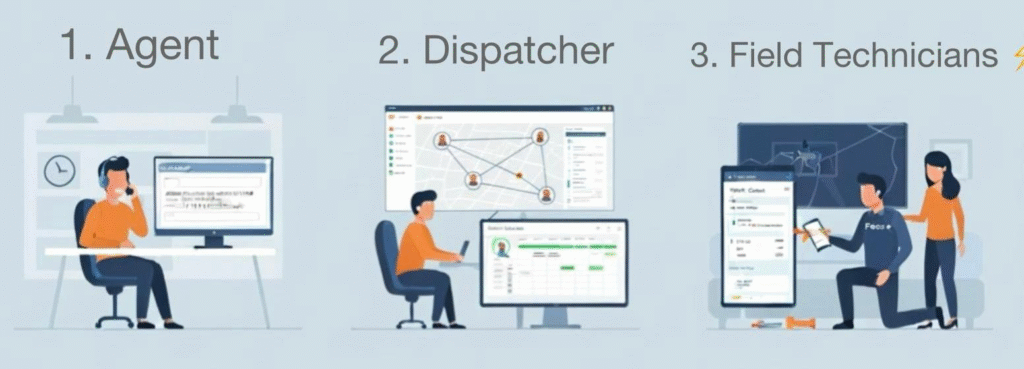
| Role | Responsibilities |
|---|---|
| Agent |
· Handles customer calls or service requests. · Creates Cases or Work Orders in Salesforce. · Schedules Service Appointments based on customer availability. · Acts as the first point of contact between the customer and the company. |
| Dispatcher |
· Manages and assigns Service Appointments to technicians. · Uses the Dispatcher Console to schedule, optimize, and dispatch jobs. · Tracks technician availability, location, and job status in real time. · Ensures the right technician is assigned to the right job at the right time. |
| Field Technician / Field Agent |
· Receives jobs on the Field Service Mobile App. · Visits customer location to diagnose and resolve issues. · Updates Work Order with parts used, time taken, and repair notes. · Captures customer signature and closes the job. |
Work Order Journey: A Simplified Process Flow
In Field Service, the primary objects are Work Orders and Service Appointments.
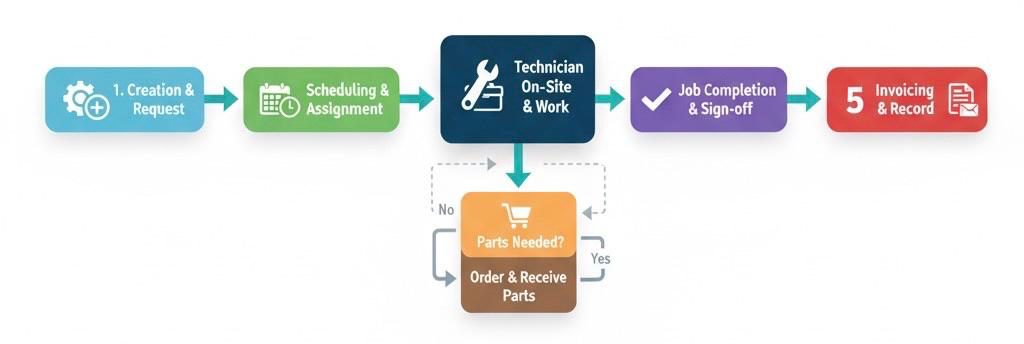
- Work Order Created – A new work order is initiated to address a customer request or issue.
- Appointment Scheduled – Service appointments are booked.
- Assignment – The work order is assigned to the appropriate field agent based on territory, skill set, and availability.
- Work Execution – The technician begins the work and performs the required service tasks.
- Parts Request (if needed) – Additional parts or tools are requested during the job if necessary.
- Job Completion – The service task is completed and verified.
- Report & Customer Signoff – A report is generated and customer approval is obtained to close the work order.
Field Service Core Data Model (FSL)
Main Objects and What They Do
- Work Order: Represents the actual job or task that needs to be completed.
- Service Appointment: Keeps all the details about a scheduled visit linked to a work order.
- Skills: Lists the abilities or qualifications needed to complete different field jobs.
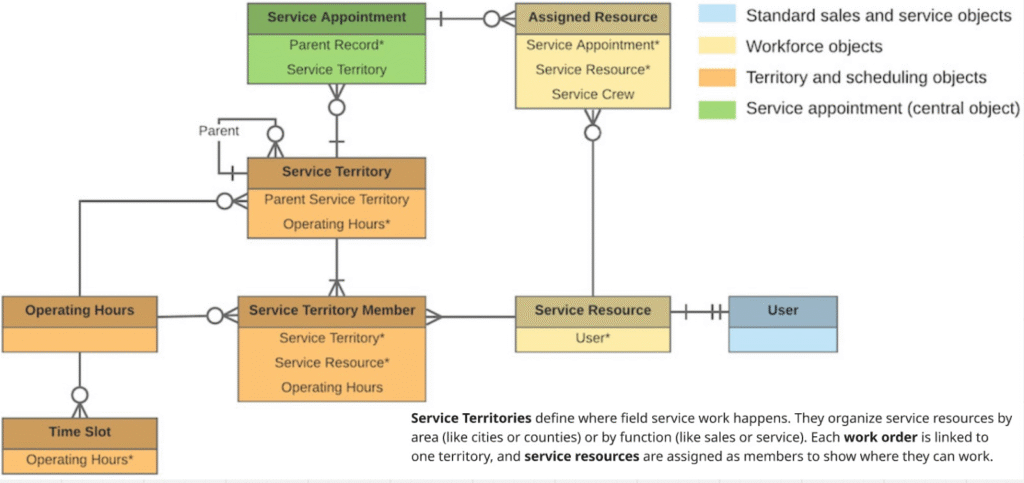
- Service Territories: Defines the locations or regions where field agents can work.
- Work Type: Provides ready-to-use templates for common jobs like fixing TV or installation.
- Service Resources: Refers to the field workers who carry out on-site tasks.
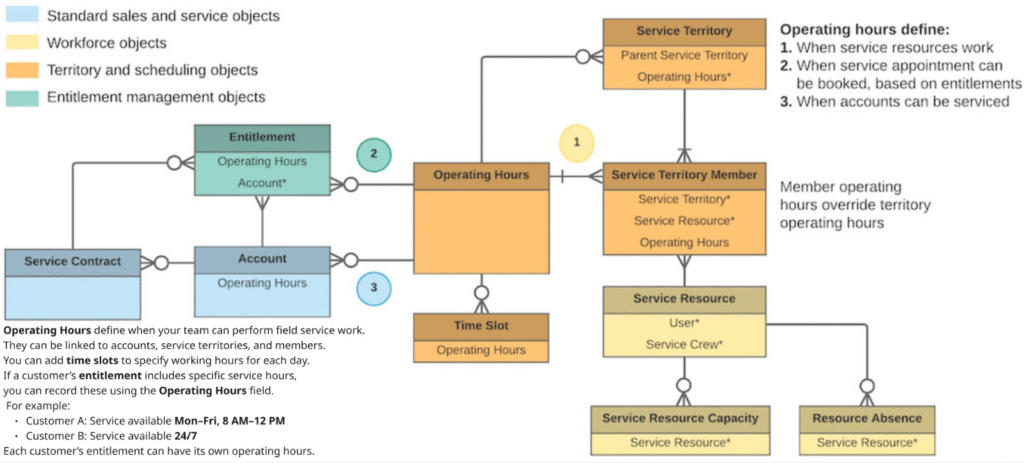
- Operating Hours: Shows when field service work can take place
- Product Items: Includes all the parts and services used or needed during field work.
- Product Requests: Tracks requests made for parts or materials required to complete a job.
- Time Sheets: Records how much time each field employee spends on their assigned work.
- Service Report Templates: Offers pre-made formats for reports that summarize what was done during a service visit and the results.
The diagram below shows the basic Field Service data model, highlighting how work orders and service appointments are created and connected
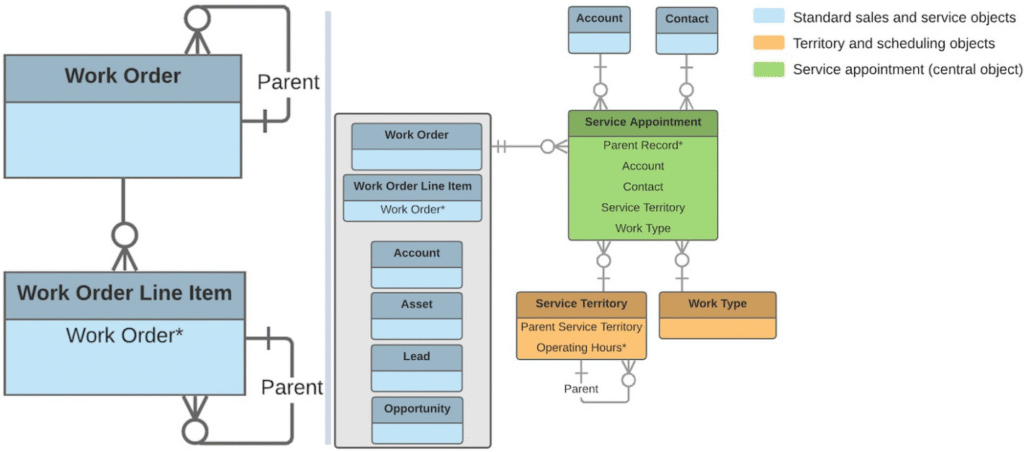
The diagram below illustrates where field service work takes place, showing how service territories define the locations where your team operates.
The diagram below illustrates when field service work happens, highlighting how operating hours and time slots determine your team’s working schedule.
Source for Data Model : developer.salesforce.com
Dispatcher Console : Scheduling and Optimization with Salesforce Field Service
The Dispatcher Console in Salesforce Field Service is the central workspace for dispatchers to manage and schedule field jobs efficiently. It’s designed with a split-panel layout that gives you a clear, side-by-side view of everything happening in the field.
On one side, you can see the Gantt chart, showing technicians’ schedules and appointments over time.
On the other side, you’ll find the appointment list, where you can view, filter, and manage upcoming jobs.
This split design helps dispatchers make quick decisions — like assigning the right technician, rescheduling work or filling open time slots — all without switching screens. It’s built for speed, clarity, and smarter scheduling.
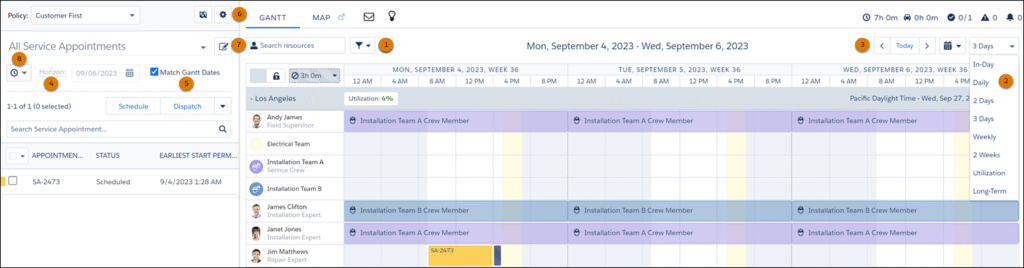
📅 Gantt Chart Settings
These settings control what time frame is shown on the Gantt:
- Gantt Filter (1):
- Hours Tab: Choose which hours of the day appear on the Gantt and adjust the Long-Term view settings.
- Utilization Tab: Decide how many days to display when viewing Utilization.
- Gantt Resolution (2):
- Pick how many days you want to see on the Gantt at once.
- The Utilization and Long-Term views are customized in the Gantt Filter tabs.
- You’ll need the Long-Term View permission to use the long-term option.
- Date and Calendar Toggles (3):
- Quickly switch between viewing by days or months.
📋 Appointment List Settings
These settings decide which appointments appear in the list.
- Horizon Date (4):
- Only shows appointments scheduled before this date.
- Match Gantt Dates (5):
- When turned on, the appointment list automatically updates to match the date range shown on the Gantt.
- Standard List View Filter (6):
- Go to Dispatch Console Settings → Scheduling Window Length to choose how many days before the horizon are shown.
- The list will display only appointments that fall within that window.
- Custom List View Filter (7):
- Click Manage Filters → New to create a custom filter.
- Under Date Selection, set how many days before and after the horizon to include.
- This gives you full control over which appointments appear.
- Date Field Dropdown (8):
- Choose which date field (for example, “Scheduled Start” or “Due Date”) is used to decide if an appointment falls within your chosen time frame.
- If the date fits the range, the appointment appears in the list.
Field Service Mobile / Mobile App :
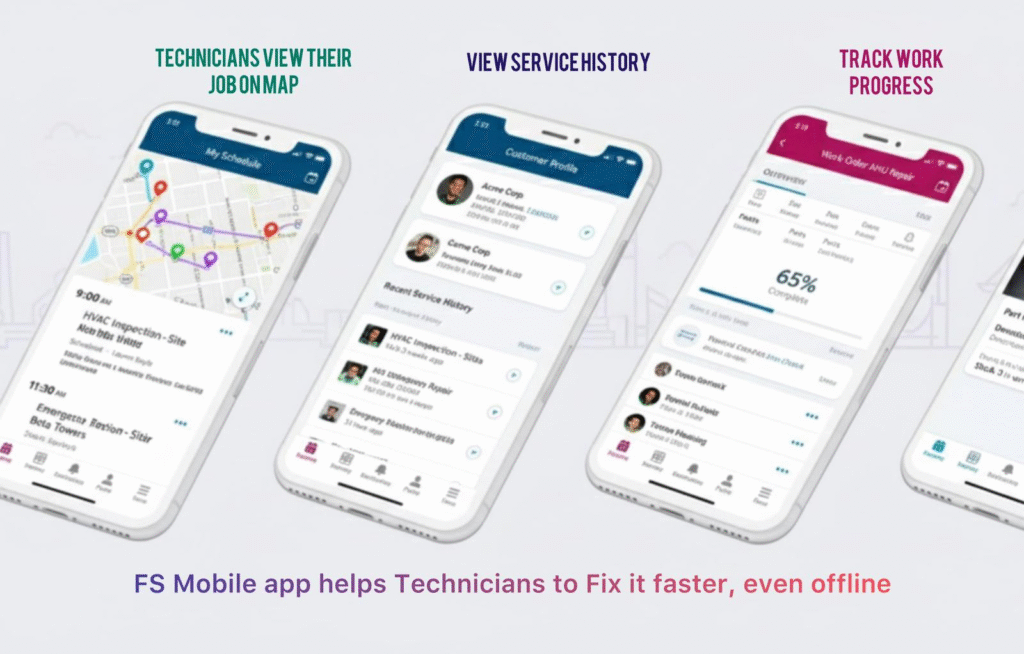
The Field Service Mobile App helps technicians get their work done faster. It gives them all the tools they need right on their phone or tablet — even without internet access.
With the app, technicians can:
- See their assigned jobs and schedules
- Check customer and job details
- Update job status, take photos, and capture signatures
- Use maps to navigate to the next site
- Work offline and sync updates later
It keeps technicians connected with the office, helps them stay organized in the field and ensures every job gets done smoothly and on time.
🚀 Overall Summary
Salesforce Field Service Lightning makes managing field operations smarter and more efficient. From scheduling and dispatching to real-time mobile access, it connects your entire service team — ensuring faster responses, better visibility and happier customers.